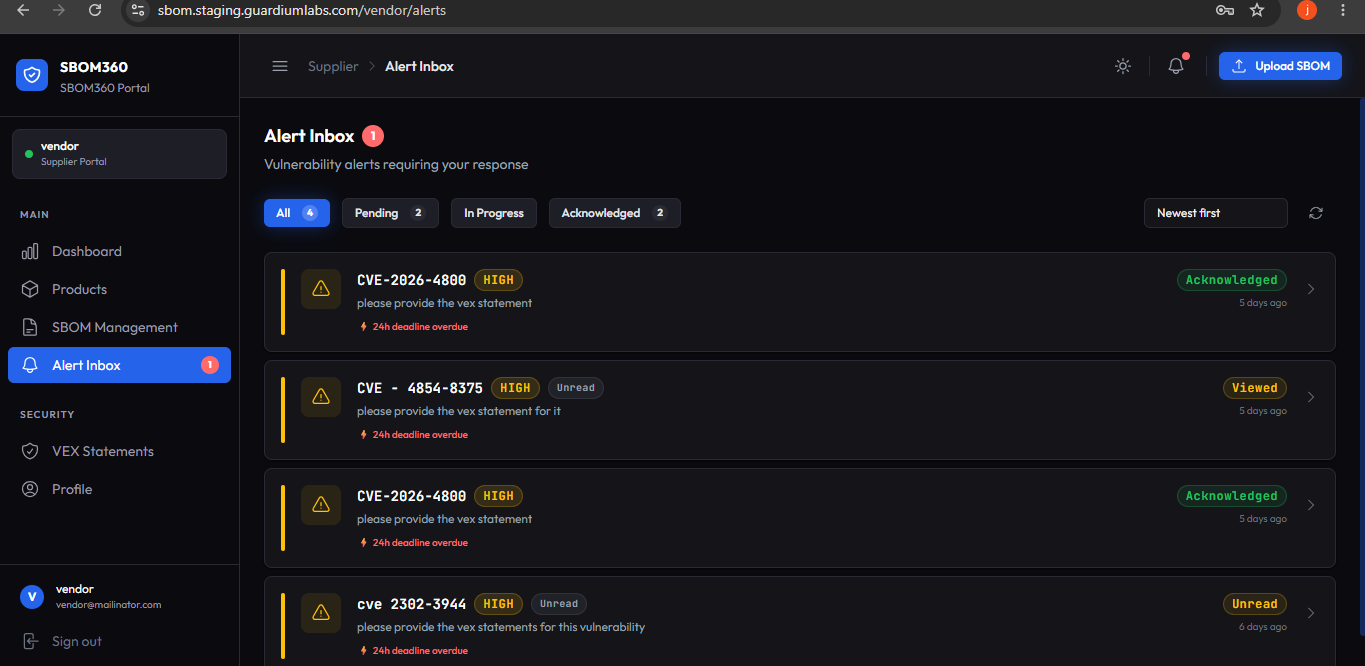
Alert Inbox
The Alert Inbox lists every vulnerability alert the organization has sent to you, with a red badge on the sidebar showing your unread count.
Filters
- Tabs filter by status, for example Pending or Investigating, each with a live count.
- Sort by Newest first or Priority.
- Click the refresh icon to reload the list.
Alert list
Each alert shows the primary CVE, severity badge, a short status label (Unread or Investigating), and the message from the security team.
Responding to an alert
Opening an alert shows the full advisory: severity, message, all related CVEs if more than one, and when the alert was received.
How do you want to respond?
For a new, unresponded alert, three primary response options are presented as large action cards:
- We're Investigating — starts an investigation and notifies the organization immediately that you are looking into it.
- Not Affected — opens the VEX form pre-filled to confirm and justify that your product is not affected.
- Fix Available — opens the VEX form pre-filled to submit patch or remediation details.
A secondary option, Acknowledge receipt only, lets you confirm you have seen the alert without committing to a VEX response yet — useful when you need more time to investigate.
Once investigating
A status banner confirms the organization has been notified, and two buttons let you update your response as the investigation concludes: Submit Fix / Patch Ready or Confirm Not Affected.
Once responded
A confirmation card shows when you responded and any notes you provided; the status updates to Response Submitted or Marked as Patched.
Tip
SBOM360 targets a response time of under five minutes for the first acknowledgment of any alert — even a quick "We're Investigating" keeps the organization informed while you gather details for a full VEX response.