VEX Request Inbox
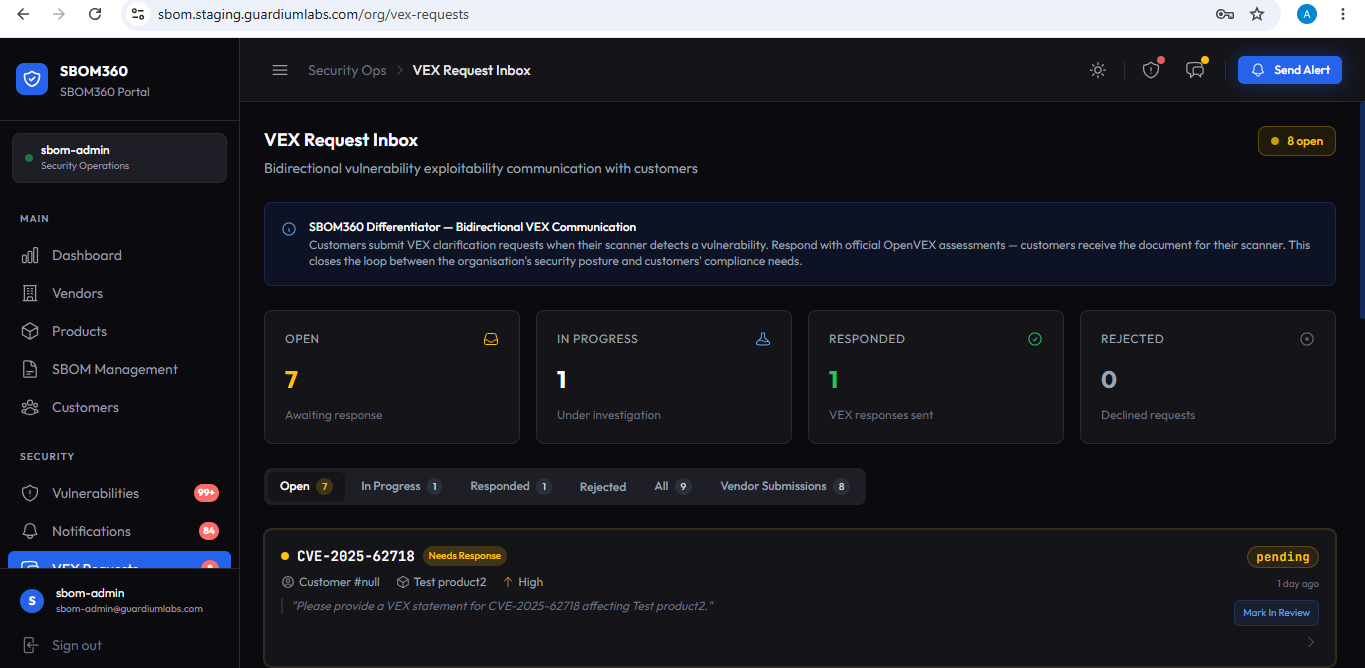
The VEX Request Inbox is SBOM360's bidirectional VEX communication centre. Customers submit VEX clarification requests when their own vulnerability scanner detects a CVE; the organization responds with an official OpenVEX assessment that the customer can load directly into their scanner.
Summary cards and tabs
Cards show Open (awaiting response), In Progress (under investigation), Responded, and Rejected counts. Tabs filter between these states, plus a Vendor Submissions tab listing VEX documents that vendors have submitted proactively or in response to an alert.
Responding to a VEX request
Opening a request shows a guided, step-numbered workflow:
Step 2 — Request Details
What the customer's scanner found: customer name and email, affected product, priority, submission date, the SBOM/scanner source if provided, and the customer's own question in their words.
Step 3 — Investigate Internally
Any existing VEX statements already on record for this CVE are shown for cross-reference. An Investigation Checklist lets you tick off standard verification steps as you work through them.
Steps 4 and 5 — Compose and Send
Use the mode toggle to choose Submit VEX Response or Reject Request.
- VEX Status: select Not Affected, Affected, Fixed, or Under Investigation.
- Justification: required when the status is Not Affected — choose from the standard OpenVEX justification list.
- Action Statement: required for Affected or Fixed — describe the action taken, remediation, or workaround.
- Remediation Target Date: for Affected or Fixed statuses, record when a patch is or was expected.
- Fixed in Version: for Fixed status, record the version containing the fix.
- Additional Notes: optional extra context for the customer.
- Submit VEX Response: click to send. The customer automatically receives an email notification, a portal notification, and the OpenVEX document itself for their scanner.
Other actions on a request
- Mark In Review — flags a pending request as actively being worked, before a final response is ready.
- Alert Vendor — escalate the request to the responsible vendor for their input before responding.
- View CVE — jump straight to the CVE's detail page.
Vendor VEX submissions
The Vendor Submissions tab lists every VEX document a vendor has submitted. Opening one shows vendor, product, and SBOM context, document metadata (author, version, tooling, submission date), and every statement it contains, each with its VEX status, justification, impact statement, recommended action, and affected packages.
Tip
Use the VEX Status Guide panel on the request detail page as a quick reference for when to use each status: Not Affected, Affected, Under Investigation, or Fixed.