Vendor Management
6.1 Vendor list (Vendors page)
The Vendors page lists every vendor in your supply chain, with summary cards for total vendors, active relationships, total SBOMs submitted, and critical vulnerabilities across all vendor SBOMs.
Features
- Search vendors by company name using the search box.
- Filter by status: Active, Inactive, Suspended, or Pending.
- Each row shows company name, status, contact email, SBOM count, product count, average alert response time, critical/high vulnerability counts, and a Health badge summarizing overall vendor risk.
- Click Alert on any row to open the Send Alert modal, pre-filled for that vendor, to request vulnerability information.
- Click View, or click anywhere on a row, to open that vendor's detail page.
Inviting a vendor
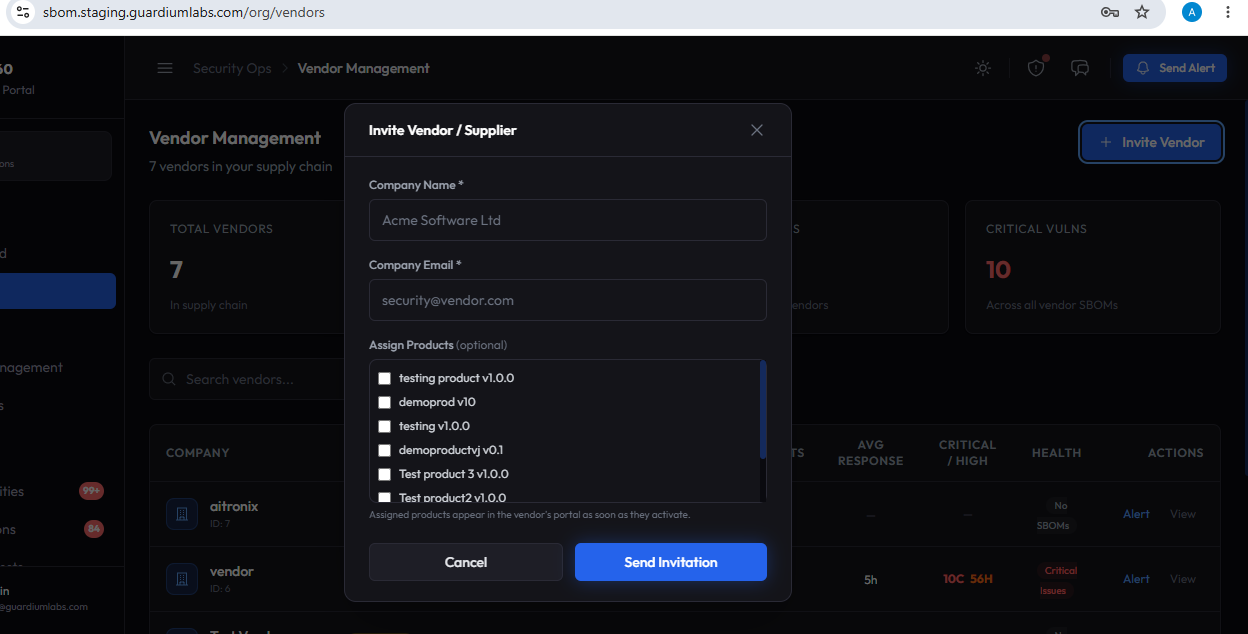
Click Invite Vendor in the top-right corner to open the invitation form.
- Company Name: enter the vendor's legal company name (required).
- Company Email: enter the vendor's primary security or business contact email (required).
- Assign Products: optionally select one or more existing products from your catalog to assign to the vendor immediately.
- Send Invitation: click Send Invitation. The vendor receives an email with an activation link; any products you assigned appear in their portal as soon as they activate their account.
Note
You do not need to assign a product at invitation time — you can assign products later from the vendor's detail page.
6.2 Vendor detail page
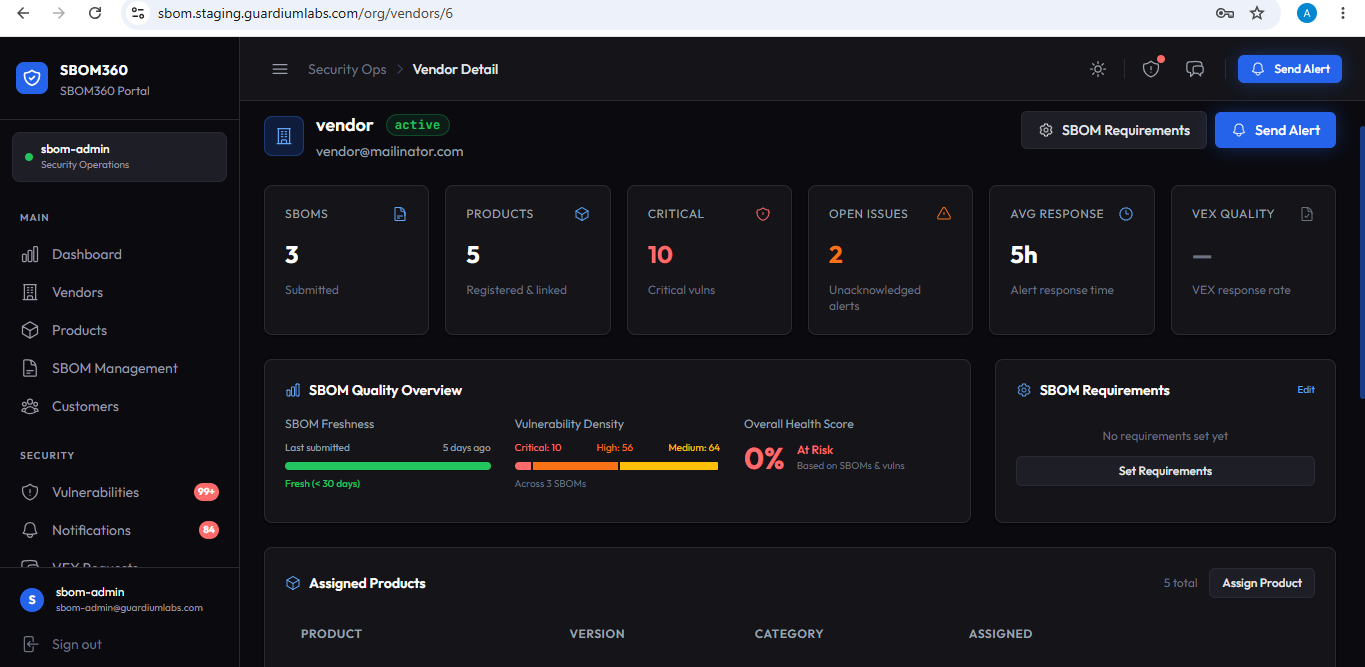
Opening a vendor shows a full scorecard and management view for that relationship.
Scorecard metrics
| Metric | What it means |
|---|---|
| SBOMs | Total SBOMs submitted by this vendor. |
| Products | Number of products registered and linked to this vendor. |
| Critical | Total critical vulnerabilities across the vendor's SBOMs. |
| Open Issues | Unacknowledged alerts sent to the vendor. |
| Avg Response | Average time the vendor takes to respond to an alert. |
| VEX Quality | The vendor's VEX response rate — how often they provide a formal VEX assessment when asked. |
SBOM Quality Overview
A three-part panel showing SBOM freshness (time since the vendor's last submission), vulnerability density (a visual breakdown of critical/high/medium counts across all their SBOMs), and an overall health score combining both.
SBOM Requirements panel
Shows the quality thresholds configured for this vendor: required SBOM format, update frequency, maximum allowed critical and high vulnerabilities, and a minimum quality score. Click Edit or Set Requirements to open the requirements form.
- Required SBOM Format: choose Any format accepted, CycloneDX only, or SPDX only.
- SBOM Update Frequency: choose how often the vendor must refresh their SBOM — No requirement, Every release (weekly), Monthly, Quarterly, or Bi-annually.
- Max Critical / High Vulnerabilities: set numeric ceilings; leave blank for unlimited, or set to 0 to allow none.
- Minimum Quality Score: drag the slider from 0% (no requirement) to 100% (strictest).
- Notes: add optional internal notes about these requirements, then click Update Requirements to save.
Assigned Products
Lists every product currently assigned to this vendor. Click Assign Product, tick one or more unassigned catalog products, and click Assign to add them; assigned products appear in the vendor's portal immediately. Click Unassign on any row to remove a direct assignment — this does not delete any SBOMs the vendor has already submitted.
Submitted SBOMs
A table of every SBOM this vendor has submitted, with format, scan status, and critical/high/medium vulnerability counts. Click any row to open the full SBOM detail page.
Available actions
- Send Alert — opens the Send Vendor Inquiry modal to request vulnerability information or an SBOM/VEX update from this vendor.
- SBOM Requirements — open or edit the requirements form described above.
Best Practice: Set SBOM Requirements for every vendor as soon as they are invited. This keeps quality expectations visible to the vendor from their very first upload.