SBOM Management
9.1 SBOM Management page
Lists every SBOM in the organization's catalog — whether uploaded directly by the organization or submitted by a vendor — with filters for scan status: All statuses, Pending, Scanning, Completed, or Failed. Pagination controls (Prev / Next) move through the list.
9.2 Uploading an SBOM
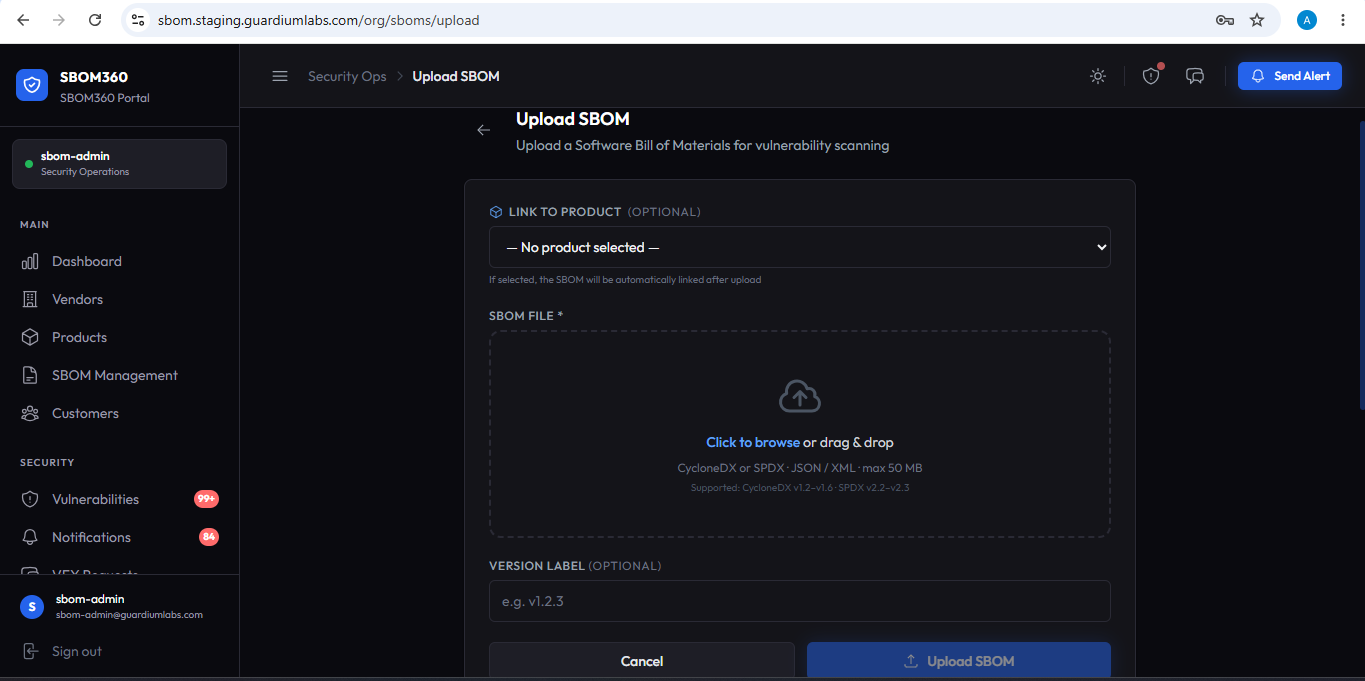
From the SBOM Management page, or from a Product detail page (Upload / Link SBOM), you can either upload a new file or link an existing SBOM by its ID.
Upload New SBOM tab
- Select a file: click to browse or drag and drop a CycloneDX or SPDX file (JSON or XML), up to 50 MB. Supported versions: CycloneDX v1.2–v1.6, SPDX v2.2–v2.3.
- Version Label: enter a version label for this submission, for example "v1.0.0".
- Vendor: optionally attribute the SBOM to a vendor, or leave as "No vendor" for an organization-owned SBOM.
- Upload & Link: click to submit. The file is scanned automatically in the background; the modal shows Uploading, then a success state once the scan is complete.
Link by SBOM ID tab
- SBOM ID: paste the SBOM's UUID (for example, from a vendor submission) to link an already-existing SBOM record to a product.
- Vendor, Version Label, Notes: optionally set these fields, then click Link SBOM.
9.3 Linking an SBOM to a product
An SBOM only contributes to a product's vulnerability picture once it is linked to that product. You can link from three places:
- SBOM Management — the Link to Product action on any SBOM row.
- SBOM detail — the Link to product button in the relationship card.
- Product detail — Upload / Link SBOM, using the Link by SBOM ID tab.
Choose the product, optionally set a version label, and click Link SBOM. The dialog shows which product the SBOM currently belongs to, if any, before you change anything.
When the SBOM already belongs to another product
Each product has one active (current) SBOM per vendor. If the SBOM you are linking is already the active SBOM for a different product, the dialog explains the situation and offers three choices instead of failing:
| Choice | What happens |
|---|---|
| Move to this product | This product becomes the active owner. The other product keeps the SBOM in its version history, but it is no longer that product's active SBOM. |
| Keep the other product and add as extra version | The other product stays the active owner. This product gains the SBOM as an additional, non-active version. |
| Cancel — change nothing | Nothing is written. The existing link is left exactly as it was. |
Whichever you choose, the confirmation message names the products involved, for example "SBOM moved from Payments API v2.4.1 to Billing Service v2.0".
What updates automatically
You never have to repair relationships by hand after linking or moving an SBOM:
- Product — the product's vulnerability counts and SBOM version history update immediately.
- Vendor — the submitting vendor follows the SBOM, so the product appears under that vendor's assigned products.
- Customers — every customer with a deployment of that product is covered by the new link, which is what drives their security inbox and notifications.
- Existing records — VEX documents, VEX requests and notifications already raised against the SBOM stay attached to it.
History is kept, not overwritten
Moving an SBOM never deletes the earlier link. The previous product retains it as a superseded version, so the audit trail of what was in force, and when, stays intact.
9.4 Unlinking an SBOM from a product
Open the product, find the SBOM in its list, and choose Unlink. Only the association is removed — the SBOM, its scan results and its links to other products are kept.
After unlinking, the platform reports what became of the SBOM:
- If the product had older versions of that SBOM, the most recent one is promoted to active automatically, so the product is never left with history but no active SBOM.
- If the SBOM is still linked to other products, the message says how many.
- If it is no longer linked to anything, you are offered the choice to delete it or keep it as a standalone SBOM that can be linked again later. Deletion is only offered when nothing else references it; otherwise the blocking records are listed.
9.5 SBOM detail page
Shows the vulnerability summary for the selected SBOM: total components, format, scan status, and a full vulnerability table with search by CVE ID or package name.
- Use Search CVE, package… to filter the vulnerability list.
- Use Search package… to filter by affected component.
- If the SBOM has unresolved critical vulnerabilities, a Send notification anyway option lets you proceed with a customer alert even if the standard checks would otherwise block it.
Supported SBOM formats
| Format | Versions supported |
|---|---|
| CycloneDX | JSON and XML — v1.2, v1.3, v1.4, v1.5, v1.6. File extensions: .json, .xml, .cdx |
| SPDX | JSON and XML/RDF — v2.2, v2.3. File extensions: .json, .xml, .spdx |
What happens after upload
- Format detection and validation: the platform detects whether the file is CycloneDX or SPDX and validates it against the schema, flagging any warnings.
- Vulnerability scan: every component is checked against known vulnerability databases; this normally completes within moments of upload.
- Linking: the SBOM is linked to the selected product and becomes the current SBOM for that product unless marked otherwise.
Tip
Linking an SBOM to a product (rather than leaving it unlinked) is what makes its vulnerabilities appear on that product's detail page.