Product Management
7.1 Products list
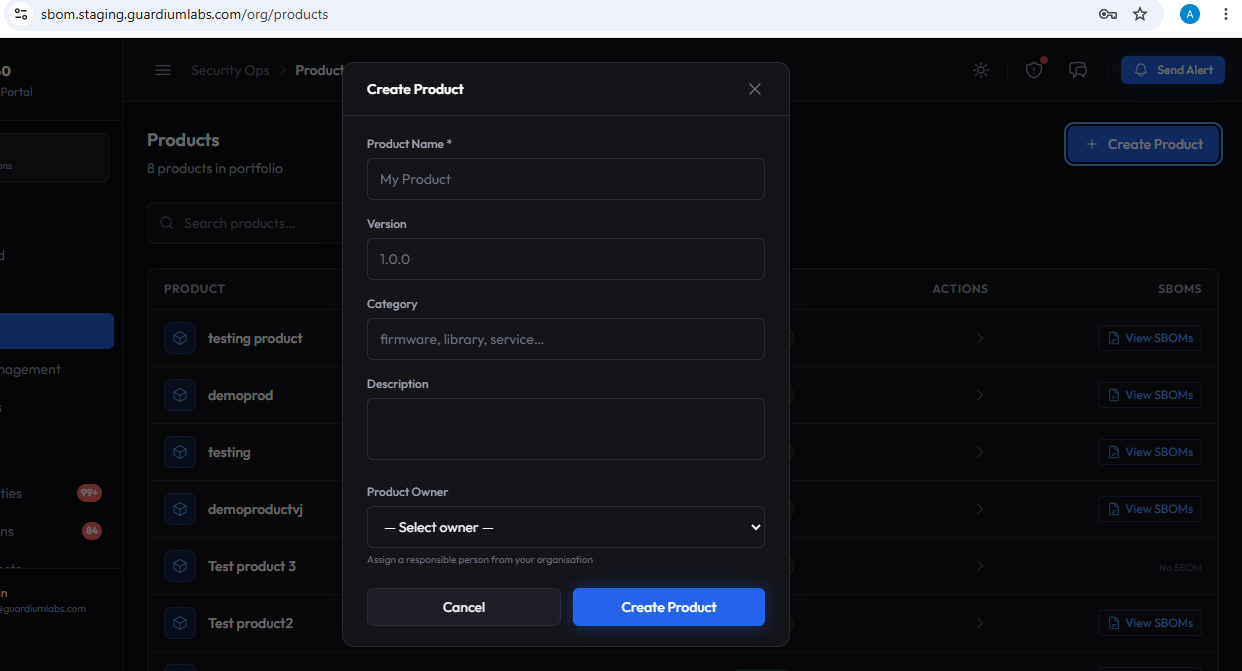
The Products page lists every product in your catalog. Use the search box to filter by name, or click Create Product to add a new one.
Creating a product
- Product Name: enter a name, for example "My Product" (required).
- Version: enter the current version label, for example "1.0.0".
- Category: enter a free-text category such as firmware, library, or service.
- Owner: optionally select which vendor owns the product from the dropdown, or leave unset for an organization-owned product.
- Save: click Create to add the product to your catalog.
7.2 Product detail page
Opening a product shows its full security posture: current critical and high vulnerability counts (from the current SBOM), the number of linked SBOMs, and the number of active customer deployments.
Sections on this page
| Section | What it contains |
|---|---|
| Vendors | Every vendor supplying an SBOM for this product, with SBOM format, scan status, and vulnerability counts. Click a vendor to open their detail page, or a SBOM to open its scan results. |
| Organization SBOMs | SBOMs uploaded directly by the organization (not via a vendor) and linked to this product, with the same status and vulnerability columns. The current SBOM is marked with a checkmark. |
| Customer Deployments | Every customer deployment of this product, with environment, version, and status. Click View Customer to open that customer's detail page. |
Available actions
- Upload / Link SBOM — attach a new SBOM to this product, either by uploading a file or linking an existing SBOM by its ID. If that SBOM is already the active SBOM of another product, you are asked whether to move it here or keep the existing link (see SBOM Management).
- Unlink — remove the association between this product and one of its SBOMs, keeping the SBOM itself (see Unlinking an SBOM).
- Notify Stakeholders — send an alert to every affected customer and assigned vendor for this product in a single action; the button shows a live count of recipients.
Warning: When a product shows an Action Required banner, it means the product has both a critical vulnerability and at least one active customer deployment. Use the Send Alert button on the banner to notify the affected parties.