Getting Started as an Organization User
4.1 Signing in
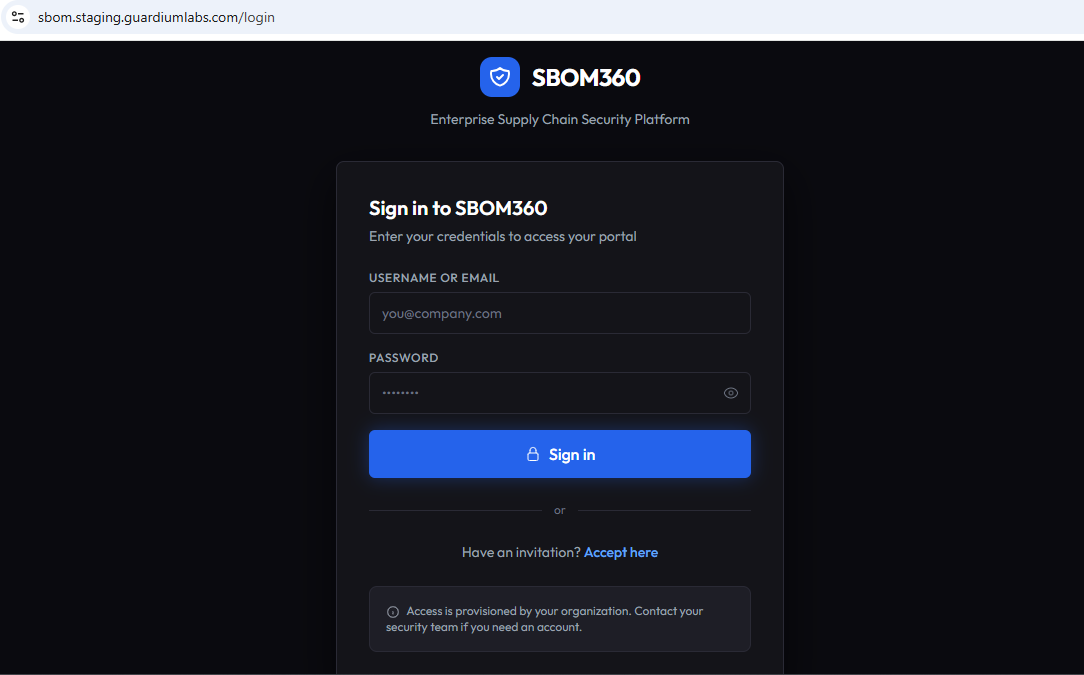
Organization accounts are provisioned by SBOM360 during setup. Go to the platform's sign-in page and enter your username or email address and password. After signing in you are taken directly to your organization's Security Dashboard.
Note
The platform is accessible at https://sbom.staging.guardiumlabs.com
4.2 Accepting an invitation
If you were invited to join an existing organization, open the invitation link you received by email. This takes you to the Accept Invitation page, where the invitation token is detected automatically. Enter your first name, last name, a username, and a password (minimum 8 characters), then submit to activate your account and sign in.
4.3 The organization portal layout
Every organization page shares the same layout: a left-hand sidebar for navigation, grouped into a Main section (Dashboard, Vendors, Products, SBOM Management, Customers) and a Security section (Vulnerabilities, Notifications, VEX Requests). Your profile and a sign-out control sit at the bottom of the sidebar.
Note
Badges next to sidebar items (for example, on Vulnerabilities or VEX Requests) show a live count of items needing attention, such as unreviewed critical vulnerabilities or open VEX requests.