Customer Notifications
The Notifications page is where the organization sends and tracks vulnerability alerts to customers and vendors.
Summary cards
Summary cards show Total Sent, Acknowledged (with response rate), and Pending.
Tabs and table
Tabs filter the list (All, Pending, Sent, Acknowledged). The table shows subject, priority, recipient, status, and sent date.
Sending a notification
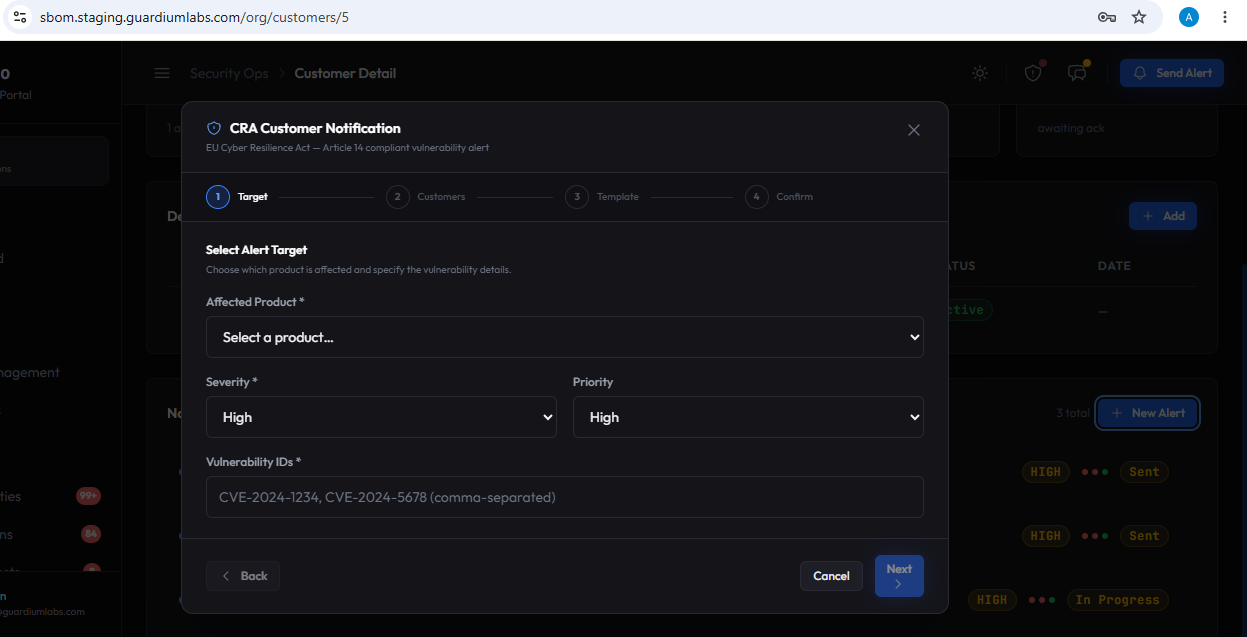
Click Send Alert to open the Customer Notification wizard — a three-step flow.
Step 1 — Select Alert Target
- Affected Product: choose which product is affected (required).
- Severity: Critical, High, Medium, or Low.
- Priority: Critical, High, Normal, or Low — controls internal urgency.
- Vulnerability IDs: enter one or more CVE IDs, comma-separated.
Step 2 — Review Affected Customers
The wizard automatically finds every customer with an active deployment of the selected product and shows, per customer: version, environment, email, and whether they Will Notify or Skip (with a reason, such as notifications being disabled). A toggle lets you also notify every vendor assigned to the product, showing the same will-notify / skip preview for each.
Step 3 — Notification Template Preview
Shows the exact email that will be sent — subject line, recipient, a unique reference, and the full message body — personalized per recipient using the Preview for selector. Review the content, then send.
Note
The subject line automatically follows the pattern [SBOM360] [SEVERITY] Vulnerability Alert — Product vVersion, and a unique reference is assigned to each notification when it is sent, for audit purposes.
Notification detail page
Opening a notification shows its full details (recipient, type, related CVEs, message, sent date), an Acknowledgment panel, and an Alert Timeline tracking the workflow steps. Where you have permission to advance the workflow, a Mark [Step] button appears next to the current pending step.
Best Practice: Always review Step 2 of the notification wizard before sending — the will-notify / skip preview catches customers who won't receive the email (for example, because notifications are disabled) before you send, rather than after.