Customer Management
8.1 Customers list
The Customers page lists every registered customer, with summary cards for total customers, active customers, customers with email notifications enabled, and notifications awaiting approval.
Features
- Search customers by name, company, or email.
- Filter by status: Active or Inactive; choose a page size of 20, 50, or 100 rows.
- Each row shows company/contact name, email, status, whether email notifications are enabled, and any product(s) the customer has deployed — click a product name to jump to its detail page.
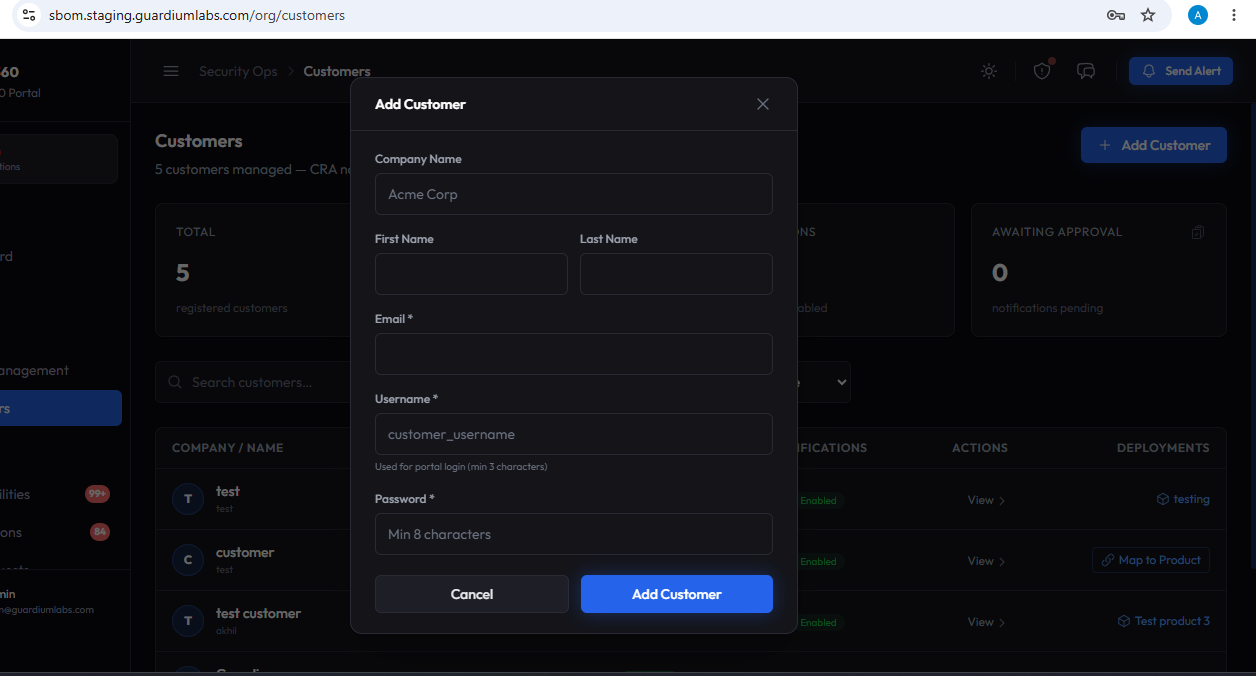
Adding a customer
- Company Name: enter the customer's company name, for example "Acme Corp" (required).
- Username: assign a portal username for the customer's account.
- Password: set an initial password (minimum 8 characters); the customer can change this later.
- Save: click Add Customer to create the account.
8.2 Customer detail page
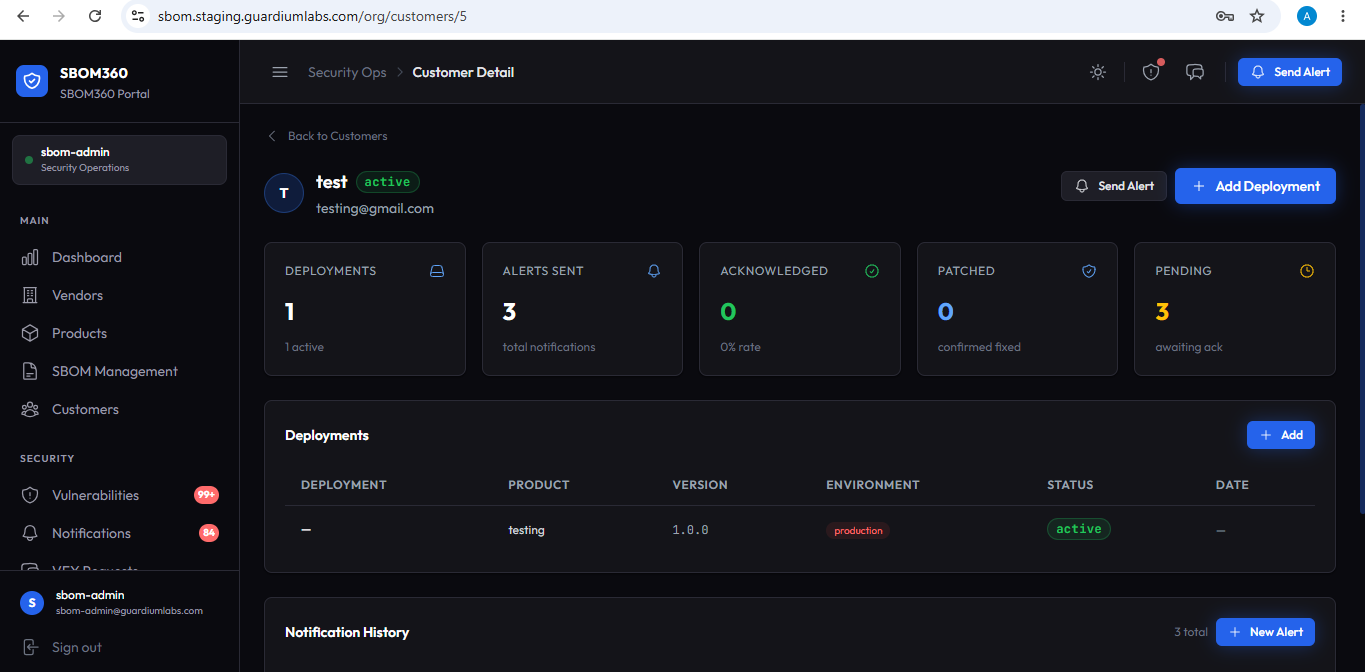
Opening a customer shows a five-metric summary — Deployments, Alerts Sent, Acknowledged, Patched, and Pending (awaiting acknowledgment) — plus deployment and notification history.
Deployments
Lists every deployment recorded for this customer: deployment name, product, version, environment, status, and date. Click Add Deployment to record a new one on the customer's behalf.
- Product: select the product being deployed.
- Product Version: enter the version deployed, for example "1.2.3".
- Deployment Name: give it a label, for example "Production EU".
- Environment: choose Production, Staging, Development, QA, UAT, or Disaster Recovery.
- Deployment Date and Notes: optionally record when it went live and any internal notes, then click Add Deployment.
Notification History
Every notification sent to this customer, with status dot, severity badge, and status badge. Click Send Alert or New Alert to open the notification wizard for this customer (see Section 11). Where a notification is Pending Approval, an Approve button dispatches the email immediately; where a notification is Acknowledged or Received, a Patched button records that the fix has been applied.
Note
If a customer's email notifications are disabled, a warning banner appears at the top of their detail page — they will not receive vulnerability alerts by email until notifications are re-enabled.