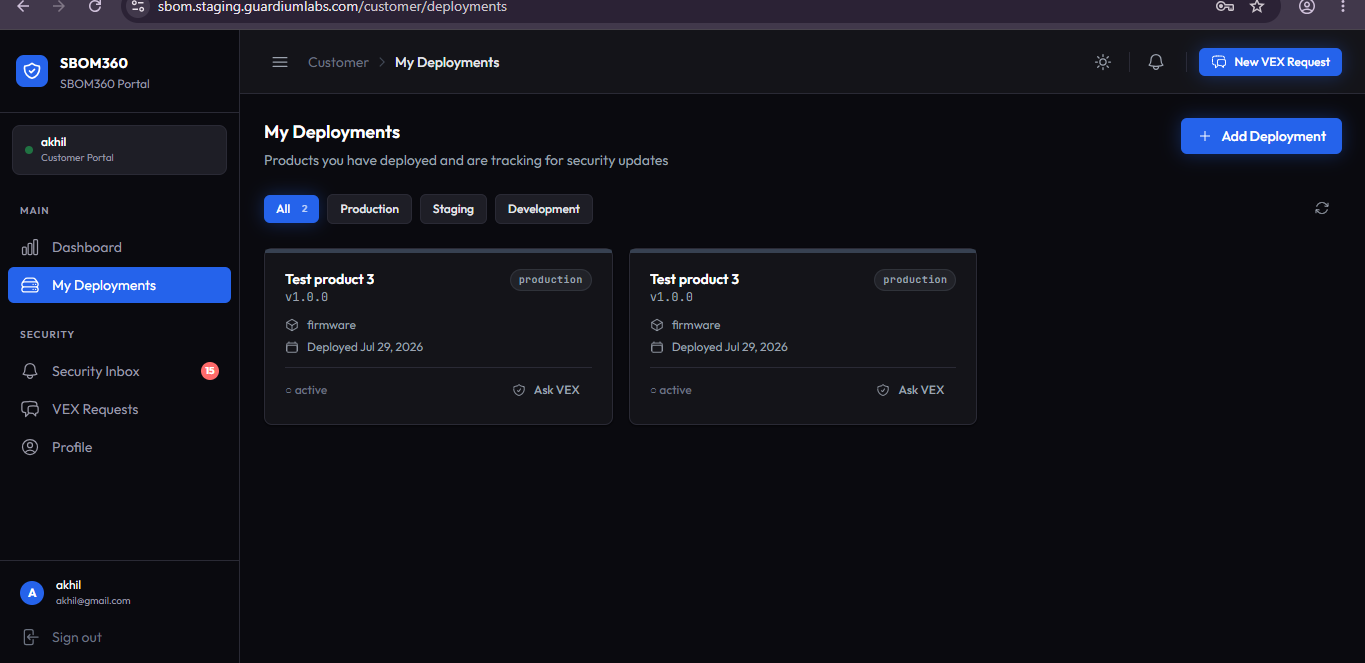
My Deployments
My Deployments lists every product you have registered as deployed, so SBOM360 knows which vulnerability alerts are relevant to you.
Filters
Filter by environment tab (for example, Production, Staging), with a live count on each tab. Click the refresh icon to reload.
Deployment cards
Each card shows the product name and version, environment badge, deployment label, deployment date, any notes, and a status indicator (Active or otherwise). Click Ask VEX on any card to open a pre-filled VEX request for that specific deployment.
Registering a deployment
Click Add Deployment (from your Dashboard or the My Deployments page) to open the two-step wizard.
Step 1 — Select Product
- Search Products: type to filter the list of available products.
- Choose a product: click a product card to select it; a checkmark confirms your selection.
Step 2 — Deployment Details
- Version: enter the version deployed. If the product has a registered version, this field is pre-filled and locked to keep it consistent.
- Environment: choose Production, Staging, Development, or another listed environment.
- Deployment Label: optionally name it, for example "US-East Production Cluster".
- Deployment Date and Notes: optionally record when it went live and any context.
- Save: complete the wizard to add the deployment. It now appears on your Dashboard and My Deployments page, and you will receive alerts relevant to it.
Tip
Register every environment separately — Production and Staging deployments of the same product — so that alerts reflect your real exposure accurately.